Compare connection options
Compare candidate buses, inspect the limiting equipment and keep the study with your project.
- Status
- Limited preview
- Access
- Projects access · A network case
- Reading time
- 2 min read
- Updated
- Updated Oct 25, 2026
Use a connection comparison when you have a network case and want to screen several possible connections on the same basis.
Prepare the cases
Add the evidence
Upload your network case and any contingency list to the project’s Files. Wait for reading to finish, then open the case to check that buses and circuits are available.
Choose a default model
Open the project’s Network models settings to select its default case, version and study bus. Add the matching contingency list when you have one.
Build the comparison
Choose candidates and operating modes
Open Jobs → Compare connection options and choose New comparison.
- 1Describe the decision and select the case versions to compare.
- 2Add candidate buses by name, number or the network map.
- 3Enter discharge / generation MW, charge / load MW, or both for a battery.
- 4Review the inputs and choose Run comparison. Save a draft if you want to return before running it.
Read and keep the result
Inspect a result cell
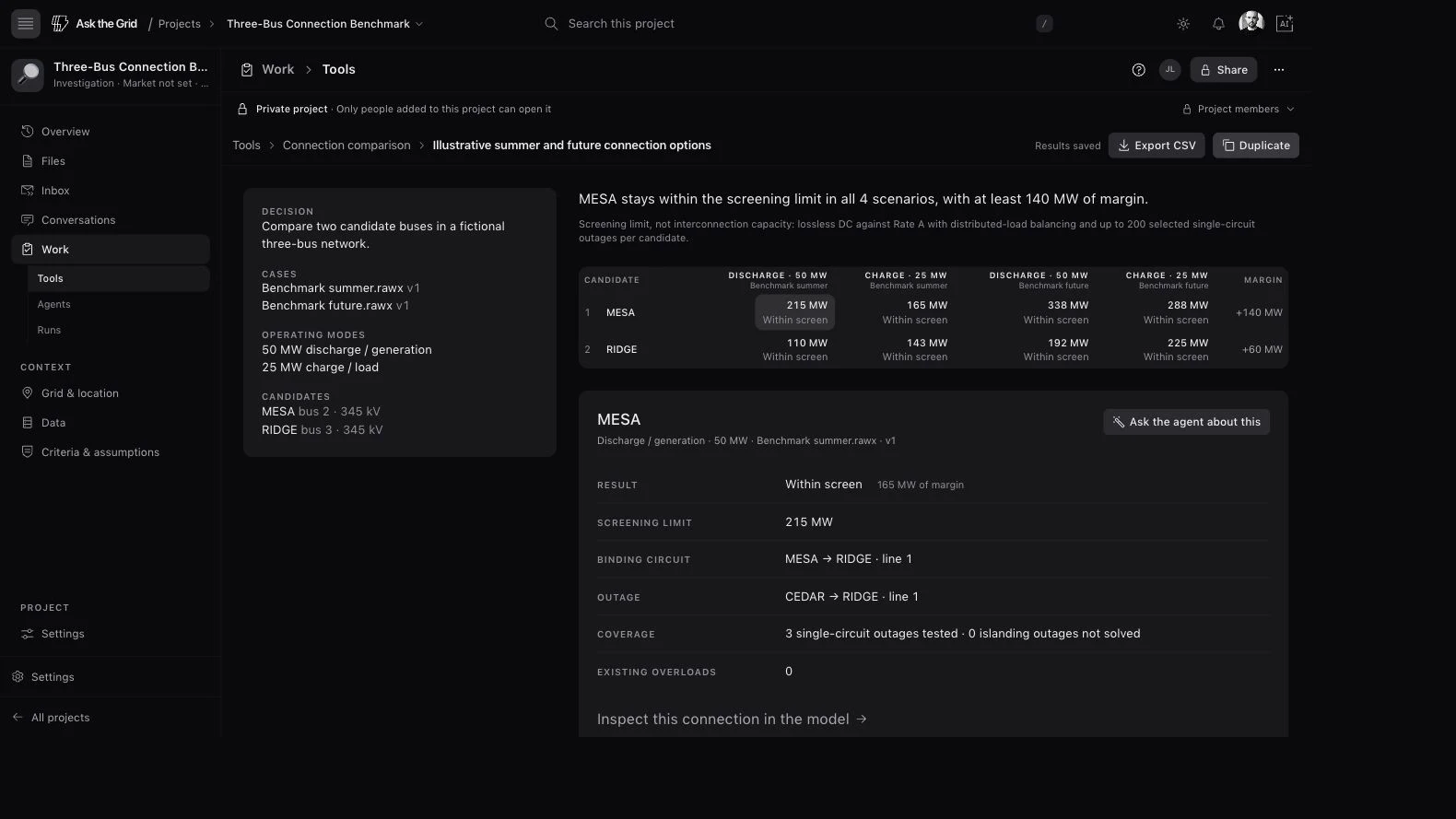
Compare the screening limit and margin for each candidate, case and operating mode. Select a cell to inspect the binding circuit, outage, existing overloads and study coverage. Use Ask the agent about this to investigate the result.
Carry the study forward
Return to the saved comparison through Files or the tool’s history. Export CSV to share the table, or duplicate the comparison to test a different proposal. Keep case versions and study assumptions with your conclusions.
Use the screen for the next decision
These are DC screening results. Use them to identify candidates and further study needs; an approved connection also needs the relevant utility studies and approvals.
Did this guide get you unstuck?
One click is enough. No message or account required.