Projects
Build a decision from your files, investigate its evidence, review findings, and keep the work current with your team.
Open Projects- Status
- Limited preview
- Access
- Invited accounts and project members
- Reading time
- 10 minutes
- Updated
- Oct 12, 2026
Projects brings the evidence for one energy decision into a private workspace: files, grid and market context, conversations, and the findings you need to review. Use it for a site, interconnection, acquisition, financing, operating asset, or market question that needs more than a single answer.
Start with what you have: a question, a location, or a folder of documents. The grid agent reads the files, suggests the project's identity and market, and answers the first question with project evidence. You can return to the same conversation, inspect the cited passages, invite collaborators, and run agents as new evidence arrives.
On this page
Start from your evidence
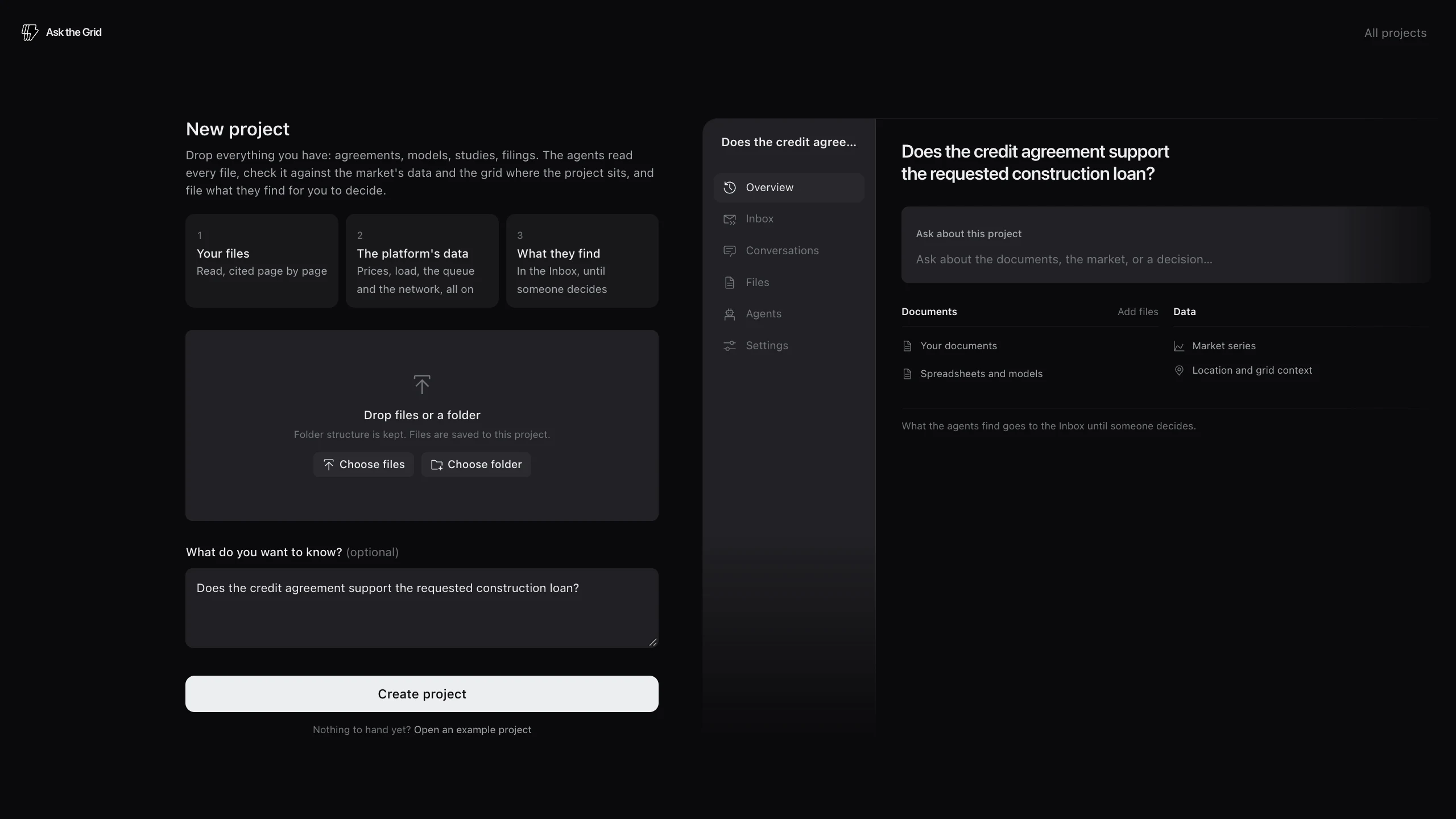
Take a walkthrough
With no project yet, a welcome opens over the empty Projects page: what it does, and a way in. Drop files or a folder and the project is made, start a project from a question or a site, or try the fictional example, which opens with its tour. The help button beside Example project opens the welcome again. The first time you open any project, a blue callout beside the tour button offers a one-minute tour. It walks the project's Overview, Files, Inbox, Agents, grid settings and composer, one callout per screen, pointing at the real control, and nothing is dimmed or locked. Each stop has Back, Next and Skip tour; Escape closes it. The tour button in the project header starts it again.
Open your workspace
Projects is available to invited accounts and people invited to a project. Sign in and open Projects from the navigation. Personal projects live in your personal workspace; organization projects live in the selected team's workspace. If access is not available, request early access. The page keeps your request receipt when you return.
Create the project
Choose New project, add files or a folder, and write the question you want answered. You can also start with a site or question alone and add evidence later. The example project is a fictional storage project with sample diligence documents; its assumptions describe that example, not an actual investment.
- 1Add the documents and, if available, the site boundary.
- 2Write the decision or question in your own words.
- 3Create the project. File reading and setup continue after you close the tab.
Check the proposed context
After the files are read, setup suggests a project name, goal, market, and site. Open About in the Overview header to see the project at a glance and edit its name, goal, kind of project, standing instructions, market, and location in place beside the findings. The top of the panel shows the project's images as a slider or its site on the map; when it has both, choose which leads. The panel can be resized or dismissed; About opens it again. On smaller screens it stays closed until opened, then appears as a drawer or a phone sheet. The Project settings link stays at the bottom of the panel. Links lead to the full General, Grid and location, and other project settings. A state alone may span more than one market: confirm the operator and point of interconnection rather than treating a location as proof of market membership. Projects outside the covered markets can still hold files and conversations.
Ask and verify a project question
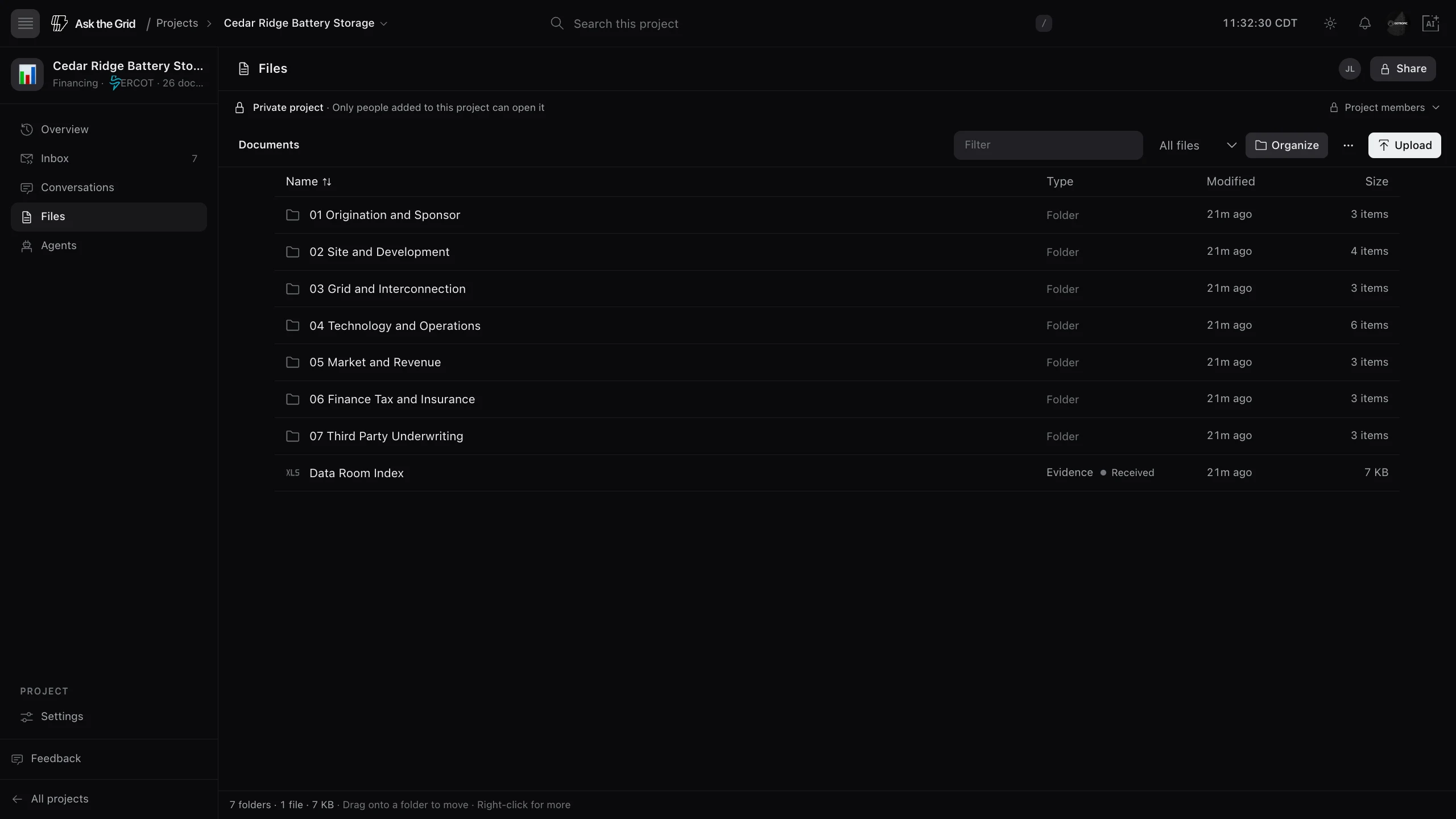
Use the project composer
Ask from the project composer as you move through Overview, Inbox, Files, Agents, or Settings. The project stays in scope, while an open file, selected folder, or finding adds more specific context. Remove a selection chip to broaden the next question. Use @ to include another project file or available dataset. Conversations lists saved threads and opens a new full-page conversation when you want more room.
Follow the evidence
The first question and later questions use the files the agent can read. Open a citation to inspect its source passage and page, sheet, or other locator. A file preview has File and Details tabs in one pane; Show details switches to its metadata instead of opening a second pane. Compare the source version, document date, market, observation time, and units with the claim. An uploaded commercial assumption and an observed market price are different evidence, even when both appear in the same answer.
Review findings and keep the case current
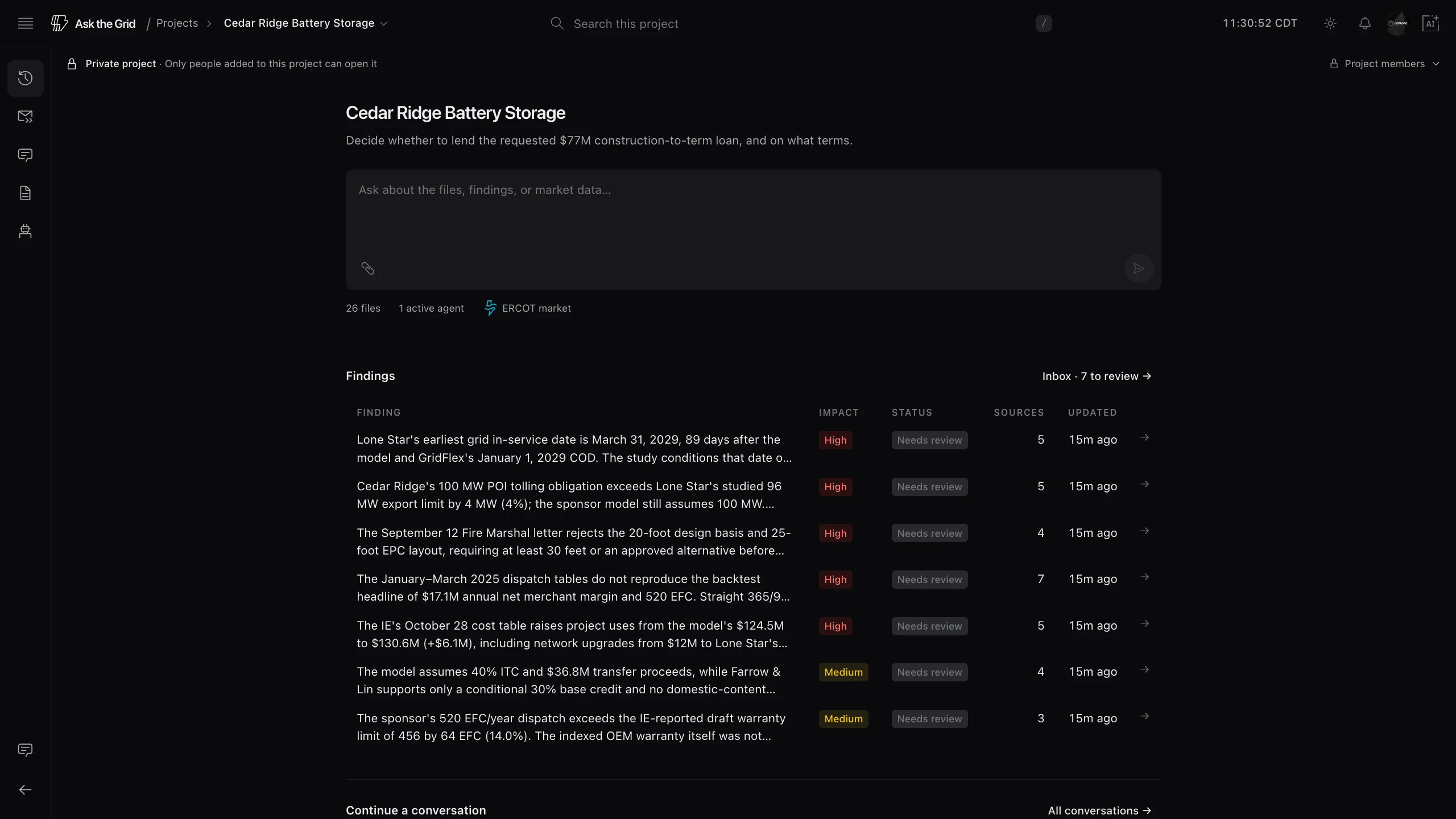
Work through the Inbox
Findings arrive in the Inbox with their impact, evidence, and review state. Open a finding to inspect its cited passages, distinguish a quotation from a calculation or agent inference, and discuss the claim in the project. Record a decision or clarification with a note so the next reader can understand what changed. A high-impact finding is a review priority; its sources establish whether the claim is supported.
Run an agent
Agents defines recurring work, including reading new files. Configure the question, scope, trigger, and requested output, or choose a template for a structured investigation. Runs shows what happened on each execution: progress, completed or failed state, findings, and generated files. A run is one execution of an agent; its output remains part of the project for review.
Configure network models
In Grid and location, choose the folder containing the project’s network models and pin the default case to a file version. Choose a study bus from that case, and link its contingency list and model geography when available. Publisher, study year, season, scenario and source date describe the inputs. A replacement upload does not change the pinned version or carry its bus into another case. Review the new version before changing the default. The agent can inspect readable cases; numerical DC screening also requires permission in the file view and compatible inputs. Restricted or excluded files remain unavailable to the agent.
Maintain the project
Add updated files and keep the market, site, decision criteria, and instructions current in Settings. Check a run's status if an expected output has not arrived. A failed run can be retried after its error is addressed. Source versions and reviewer decisions matter when comparing a new finding with an earlier one.
Bring collaborators into the decision
Invite the right audience
Open Share from the project header and invite collaborators by email, including people outside your organization. Choose the role and any expiry for the work they need to do. Project membership grants access to the project; it does not add the person to your entire organization. Organization-visible projects also follow the organization's membership and role rules.
Check access before sharing evidence
The project access labels show whether the audience is private or organization-wide. Files can carry their own sensitivity and agent-reading controls. Confirm those controls before adding restricted evidence or asking the agent to use it. Settings governs whether the agent may search the web while working with the project.
Continue with your other tools
For public grid questions, continue in the map or the grid agent. For ongoing operational data, read Bring your own data; for preserving a public map view or embedding it, read Saving and sharing. A Projects workspace keeps its private evidence and conversations separate from those public workflows.
Did this guide get you unstuck?
One click is enough. No message or account required.